Kindle Dash
Low-power Kindle dashboard: the code that runs on the Kindle periodically fetches an image to display and suspends the device to RAM until the next screen update.
- Hardware:
- Kindle 4 NT
- Difficulty:
- Intermediate · Our suggestion
- License:
- MIT
- Creator:
- pascalw
A low-power dashboard on an old jailbroken Kindle
By pascalw
- Posted
What it does
Low-power Kindle dashboard: the code that runs on the Kindle periodically fetches an image to display and suspends the device to RAM until the next screen update. It does not render the dashboard itself; you render it elsewhere with any tool you like and serve it over HTTP(s).
- Periodically fetches an image to be displayed on the screen and suspends the device to RAM until the next screen update.
- Does not render the dashboard itself: render it elsewhere with any tool you like and serve it over HTTP(s).
- The update interval is configured in dist/local/env.sh using a cron expression.
- Releases include a pre-compiled ht HTTP client that supports modern HTTPS crypto, unlike the built-in curl and wget.
What you need
- Difficulty
- Intermediate · Our suggestion
- License
- MIT (source)
Parts
- Kindle 4 NT
Prices, notes and sources: Parts and requirements
Parts and requirements
| Part | Spec / notes | Needed | Price |
|---|---|---|---|
| Kindle 4 NT | Jailbroken, with Wi-Fi configured. Tested only on a Kindle 4 NT; should work on other Kindle devices with minor modifications. | Required |
- A jailbroken Kindle with Wi-Fi configured
- An SSH server on the Kindle (via USBNetwork)
- A server or tool that renders the dashboard image and serves it over HTTP(s)
- Download and extract the latest kindle-dash release on your computer.
- Edit local/fetch-dashboard.sh (and optionally local/env.sh).
- Copy the files to the Kindle, e.g. with rsync to /mnt/us/dashboard.
- Start the dashboard with /mnt/us/dashboard/start.sh.
Steps condensed from the creator's guide.
Steps
- Difficulty
- Intermediate · Our suggestion
- Download the latest release and extract it
- Modify local/fetch-dashboard.sh and optionally local/env.sh
- Copy the files to the Kindle (rsync)
- Start with /mnt/us/dashboard/start.sh; the device suspends about 10-15 seconds later
Full instructions: View original
How it works
The code periodically downloads a dashboard image from an HTTP(s) endpoint, on an interval set with a cron expression in dist/local/env.sh, and suspends the device to RAM between updates to save power. The author renders a dashbling dashboard into a PNG screenshot on a server.
| Layer | Component | Runs on |
|---|---|---|
| Device | kindle-dash scripts | The Kindle |
| Dashboard image | Any tool you like (the author uses dashbling) | Elsewhere, fetched via HTTP(s) |
Setup effort
Download a release, edit the fetch script, copy the files to the Kindle and start the dashboard.
Limits and caveats
- Tested only on a Kindle 4 NT; other Kindle devices should work with minor modifications.
Like this build? Get the weekly builds
Every Thursday: the 5 best gadget hacks you can copy. Free.
Built something? Submit a build
The creator's config
Copied word for word from the creator's repository, at the commit linked in each source.
Copy to the Kindle and start
rsync -vr ./ kindle:/mnt/us/dashboard
/mnt/us/dashboard/start.sh
Use-case ideas
- Show a dashbling dashboard rendered into a PNG screenshot on a server.
Why it's interesting
Kindle Dash starts from a simple observation: old Kindle devices make great, energy efficient dashboards. The repo only contains the code that runs on the Kindle. It periodically fetches an image to be displayed on the screen and suspends the device to RAM, which is very power efficient, until the next screen update. It does not render the dashboard itself; what to display is rendered elsewhere and fetched over HTTP(s), which is both more power efficient and lets you use any tool you like to produce the dashboard image. The author uses a dashbling dashboard rendered into a PNG screenshot on a server. You need a jailbroken Kindle with Wi-Fi configured and an SSH server via USBNetwork. It is tested only on a Kindle 4 NT, and releases include the ht HTTP client because the built-in curl and wget lack modern HTTPS crypto.
Hardware
- Kindle 4 NT
More ways to reuse an old Kindle →
Credits and links
- pascalw: Creator
- davidhampgonsalves/life-dashboard: Inspiration
- License: MIT (source)
This page is a short summary written by HardwareLab. Build steps, code and photos belong to the creator; follow “View original” for the full project.
Featured? Add this badge
Built this? Paste the badge into your README. It links back to this page.

Markdown
[](https://hardwarelab.dev/projects/kindle-dash/?utm_source=badge&utm_medium=referral&utm_campaign=launch_2w)HTML
<a href="https://hardwarelab.dev/projects/kindle-dash/?utm_source=badge&utm_medium=referral&utm_campaign=launch_2w"><img src="https://hardwarelab.dev/badge.svg" alt="Featured on HardwareLab" width="188" height="20"></a>Related builds
All 40 in Digital Picture Frames & E-Ink
Pad Dash
Household e-ink board on a jailbroken Kindle with two AI-written panels.
- Jailbroken Kindle (800x600)
Intermediate0
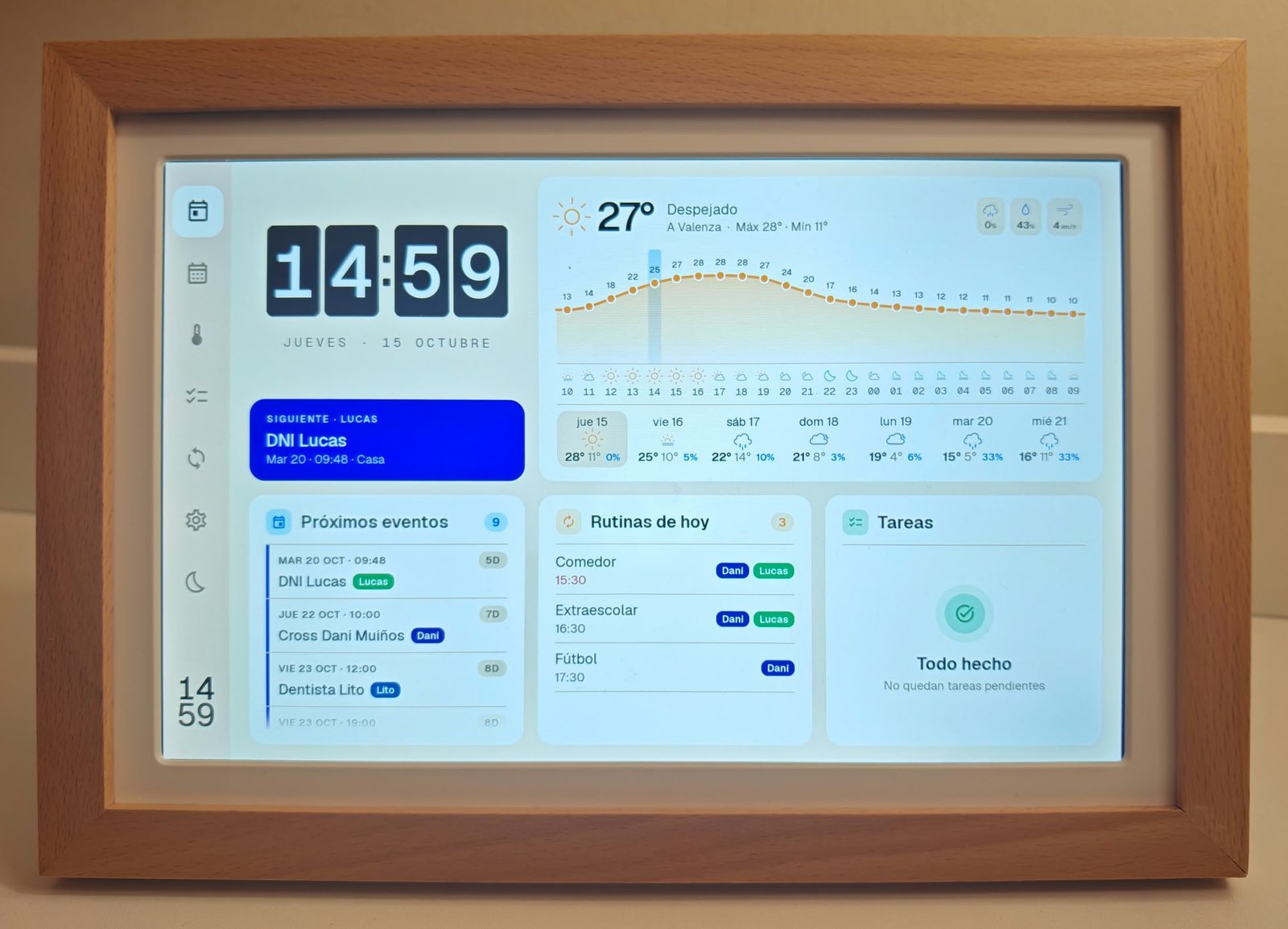
Turn a digital photo frame into a family wall dashboard
Lito turned a 10.1" XORO photo frame into a native Android kiosk with weather, a week calendar, routines and tasks; the repo is a guide for coding agents like Claude Code.
- XORO CPF 10PF 10.1" digital photo frame (1920x1200, Android 10 eng build)
- Computer with ADB for setup
Advanced40
Take over a cheap Android photo frame and run your own family dashboard
Wes Bos's notes and scripts for getting ADB, root, backups and your own kiosk app onto locked-down Android photo frames.
- Cheap Android photo frame (tested boards include BIUFRAME 10.1", PF1007L, Skylight Calendar 15" and LOOFII C-3 21.5")
- USB data cable (USB-A to USB-C for the PF1007L)
- Computer with ADB
Advanced1.7K
Sources
- github.com/pascalw/kindle-dash/blob/c83842e7561340e902812f358481f689cdec24a4/README.md?plain=1#L9
- github.com/pascalw/kindle-dash/blob/c83842e7561340e902812f358481f689cdec24a4/README.md?plain=1#L11
- github.com/pascalw/kindle-dash/blob/c83842e7561340e902812f358481f689cdec24a4/README.md?plain=1#L49
- github.com/pascalw/kindle-dash/blob/c83842e7561340e902812f358481f689cdec24a4/README.md?plain=1#L54
- github.com/pascalw/kindle-dash/blob/c83842e7561340e902812f358481f689cdec24a4/README.md?plain=1#L25-L26
- github.com/pascalw/kindle-dash/blob/c83842e7561340e902812f358481f689cdec24a4/README.md?plain=1#L13
- github.com/pascalw/kindle-dash/blob/c83842e7561340e902812f358481f689cdec24a4/README.md?plain=1#L17-L19
- github.com/pascalw/kindle-dash/blob/c83842e7561340e902812f358481f689cdec24a4/README.md?plain=1#L11-L18
- github.com/pascalw/kindle-dash/blob/c83842e7561340e902812f358481f689cdec24a4/README.md?plain=1#L11-L13
- github.com/pascalw/kindle-dash/blob/c83842e7561340e902812f358481f689cdec24a4/README.md?plain=1#L23-L27
- github.com/pascalw/kindle-dash/blob/c83842e7561340e902812f358481f689cdec24a4/README.md?plain=1#L19